
Now that remote health monitoring is part of your care plan, the NYU Langone Health app will remind you to take readings and do other tasks.
Follow the steps below to complete readings. You will do this by syncing the health data on your smartphone with the NYU Langone Health app.
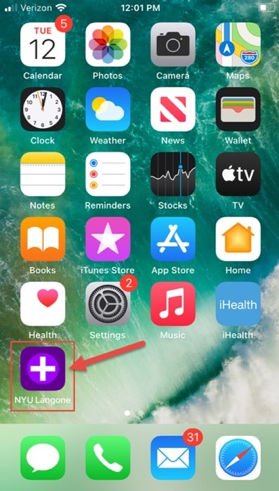
1. Open the NYU Langone Health app on your smartphone.
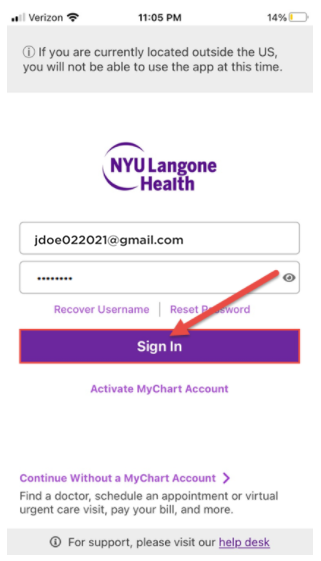
2. Sign in with your NYU Langone Health MyChart username and password.
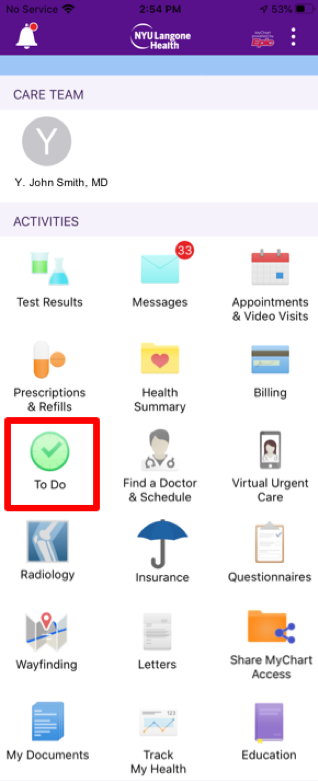
3. After signing in, you will see the home screen of the NYU Langone Health app.
Select To Do.
4. In To Do, you can see tasks you need to do for your care plan.
This example shows a task for blood pressure monitoring. You may have other types of tasks. Your tasks depend on the type of remote health monitoring program you have.

You will complete flowsheet tasks to gather important vitals and other information. This helps you and your provider track your health over time.
This section guides you through a very important, one-time setup that allows the NYU Langone Health app to access the health data on your smartphone.
After completing this setup, flowsheet tasks in the NYU Langone Health app are automatically completed when you use your health monitoring device.
1. In the NYU Langone Health app, click on To Do to see your assigned tasks. The task in this example is telling you to "Record Your Blood Pressure" today.
Select the task.
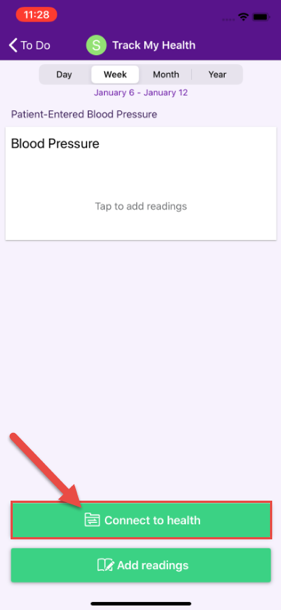
2. After selecting the task, you will go to the Track My Health screen, where you can complete the task.
Select Connect to Health.
3. You will go to the Health Connections screen. This screen has an image that shows that you are looking to sync the health data on your smartphone with the NYU Langone Health app.
Select Connect to "Health."
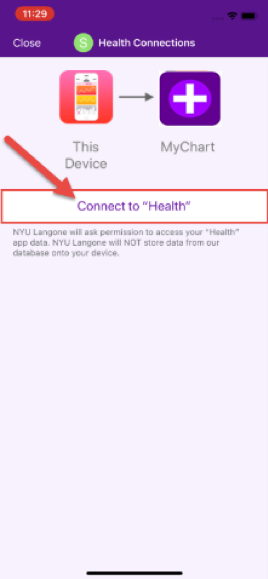
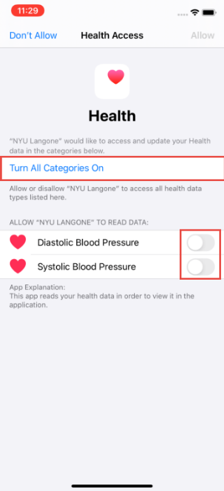
4. Apple Health Access (or Google Fit for Android) will open. Here you will see different data categories for remote health monitoring display.
Select Turn All Categories On. Or you can slide the buttons (toggles) for certain categories you want to share with the NYU Langone Health app.
Note: The toggle will turn green when a chosen category is active (enabled).
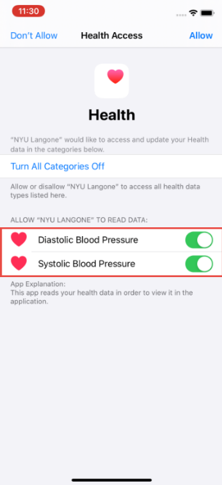
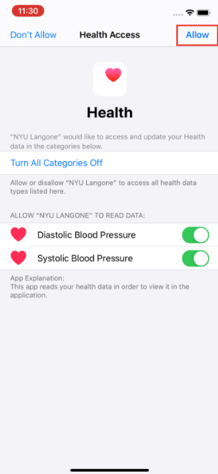
5. Select Allow in the top right of the screen. Now the data for these categories can be read by the NYU Langone Health app.
6. You will return to the Health Connections screen. Here you will see the app is syncing with Apple Health on your smartphone. Your NYU Langone Health app will now receive your blood pressure data.
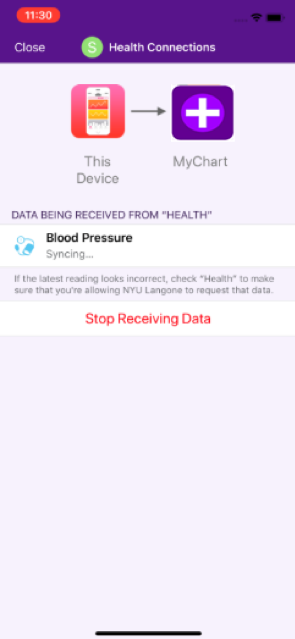
7. Once you see that your most recent blood pressure reading has been received, select Close from the top left of the screen.
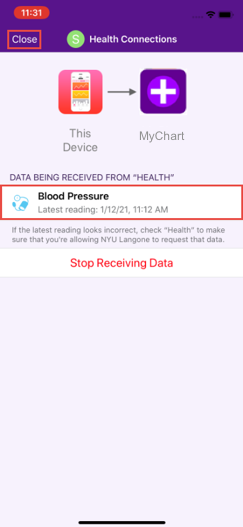
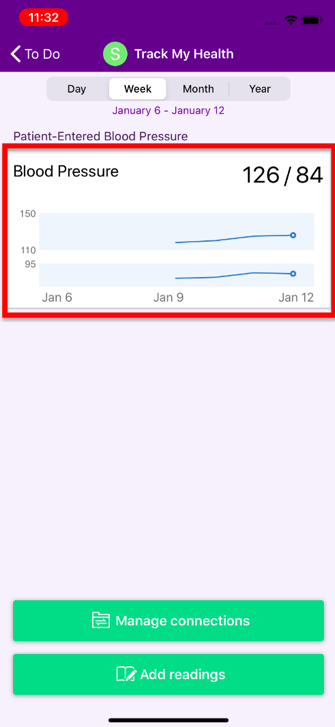
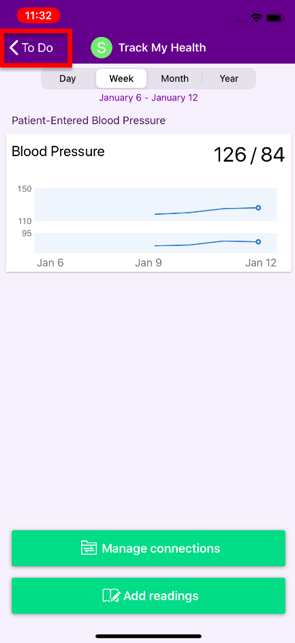
8. This returns you to the Track My Health screen. Here you will see your most recently collected health data.
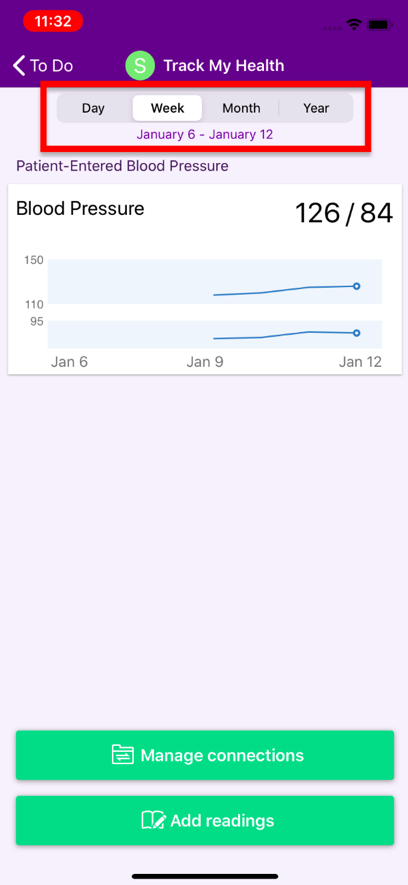
9. You can also review your past readings by selecting the different time intervals (for example, Day, Week, Month, or Year) at the top of the screen.
10. Select To Do in the top left corner of the screen to return to your list of assigned tasks.
11. You will return to the To Do screen.
The blood pressure task has been automatically completed.
If you do not have any more tasks to complete, you will see a friendly acknowledgement of your accomplishment.
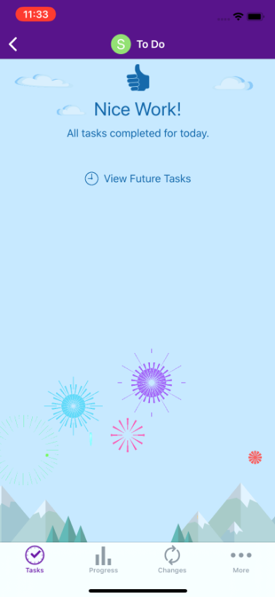
12. Select the back arrow in the top left of the screen to return to the home screen of the NYU Langone Health app.

© NYU Langone Health. All rights reserved. Reviewed for health literacy. This information is not intended as a substitute for professional medical care. Always follow your health care provider's instructions.